

Most boards have a request form somewhere, usually a PDF. A resident prints it, fills it in by hand and drops it off, and the answers come back in a shape nobody can sort.
Here the board describes the form it needs in plain words, reads the draft that comes back, and puts it on the community's own website. The form is for gate remotes and pool fobs.
What the video covers
- The community's Forms page, with two forms already up
- Describing a new form in plain words
- Ticking a policy document as a reference
- The draft that comes back, and the fields that came from the policy
- Relabeling one field
- Saving the form and turning it on
- A resident filling it in on the community's site
- The submissions page
- What the draft can get wrong
The full walkthrough, in words
The community's website has a Forms page, and two forms are up on it already.
To add a third, the board starts a new form in the dashboard and, under Generate with AI, describes what it needs: the resident's name, address and phone number, how many gate remotes and pool fobs, and the date they're needed by.
An optional list of the association's policy documents sits below the description. The board ticks its gate remote and pool fob policy, and the first part of that document's text goes to the generator along with the description. Generating takes a few seconds, and nothing shows until it's done.
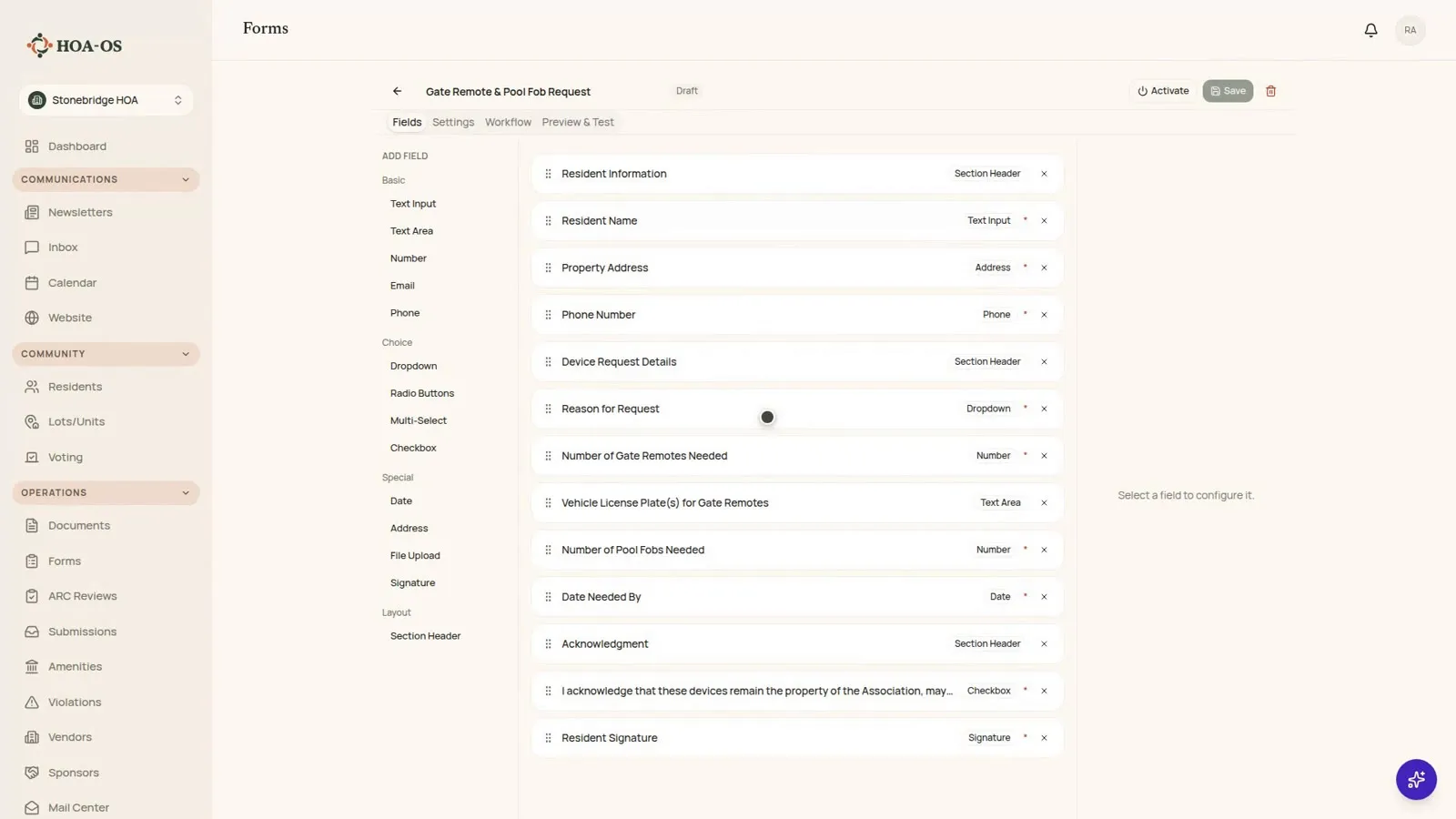
It comes back as a draft. The board clicks Use This Form, and it opens in the editor with a Draft badge and stays off the website until the board activates it. Because the policy was ticked, the draft also has fields the description never asked for: a reason for the request, a license plate, an acknowledgment and a signature.
Every field can be changed. The board retypes the date field's label so it reads the way a resident would say it, saves the form and activates it. The badge reads Active, and the form is listed on the community's Forms page with the other two.
Mei Lindqvist, a resident, is signed in on the same site. Her name and phone number are already filled in from her account. She adds her address, chooses a reason, asks for two remotes and one fob, types her license plates, picks a date, ticks the acknowledgment, signs by typing her name and sends it.
Back in the dashboard, the form's submissions page shows her request with her name on it. Each answer sits in its own column, and opening the row shows the whole request.
Even with a policy ticked, what comes back is a draft, and it can miss things or get them wrong. Read every field before turning it on.
Filmed in the product on a demo community with seeded data and a policy document written for this video. Two waits were cut out, the generator's and the submit button's; nothing is sped up and nothing is a mockup.
Questions boards ask about this
Does the board have to build the form field by field?
The board describes the form in plain words, gets a draft back, then edits whatever needs changing.
What does ticking a policy document do?
The first part of the document's text goes to the generator along with the description. In the video, the draft came back with fields the description never asked for.
Does it read our governing documents on its own?
No. Only the documents the board ticks are sent, and what comes back is still a draft to read field by field.
Is the form live as soon as it's generated?
No. It opens as a Draft, and it's on the website only after the board saves it and activates it.
Related reading
See what HOA-OS covers for self-managed HOA boards at hoa-os.com/self-managed-hoa-software.